
Start here
How to set up TableClarity
Turn a poker screenshot into a clear recommendation. Choose your game, share the table, and analyze the spot when you're ready.
Create your account
Open Account and choose Continue with Google, or sign in with email and password. New email accounts require the six-digit confirmation code sent to your inbox. Google usually confirms your email automatically; follow any verification prompt that appears. Use the same account to keep your credits and History together.
Choose Cash Games or Tournaments
Use the Game type selector above Share poker screen. Cash Games uses cash-game strategy, including rake and stack depth. Tournaments uses tournament strategy and relevant payout considerations. Your browser remembers your choice. Switching modes applies to the next analysis; it doesn't change earlier recommendations.
Click Share poker screen
Open the poker table or permitted hand-review material you want to analyze. In TableClarity, click Share poker screen. Your browser opens its sharing chooser.
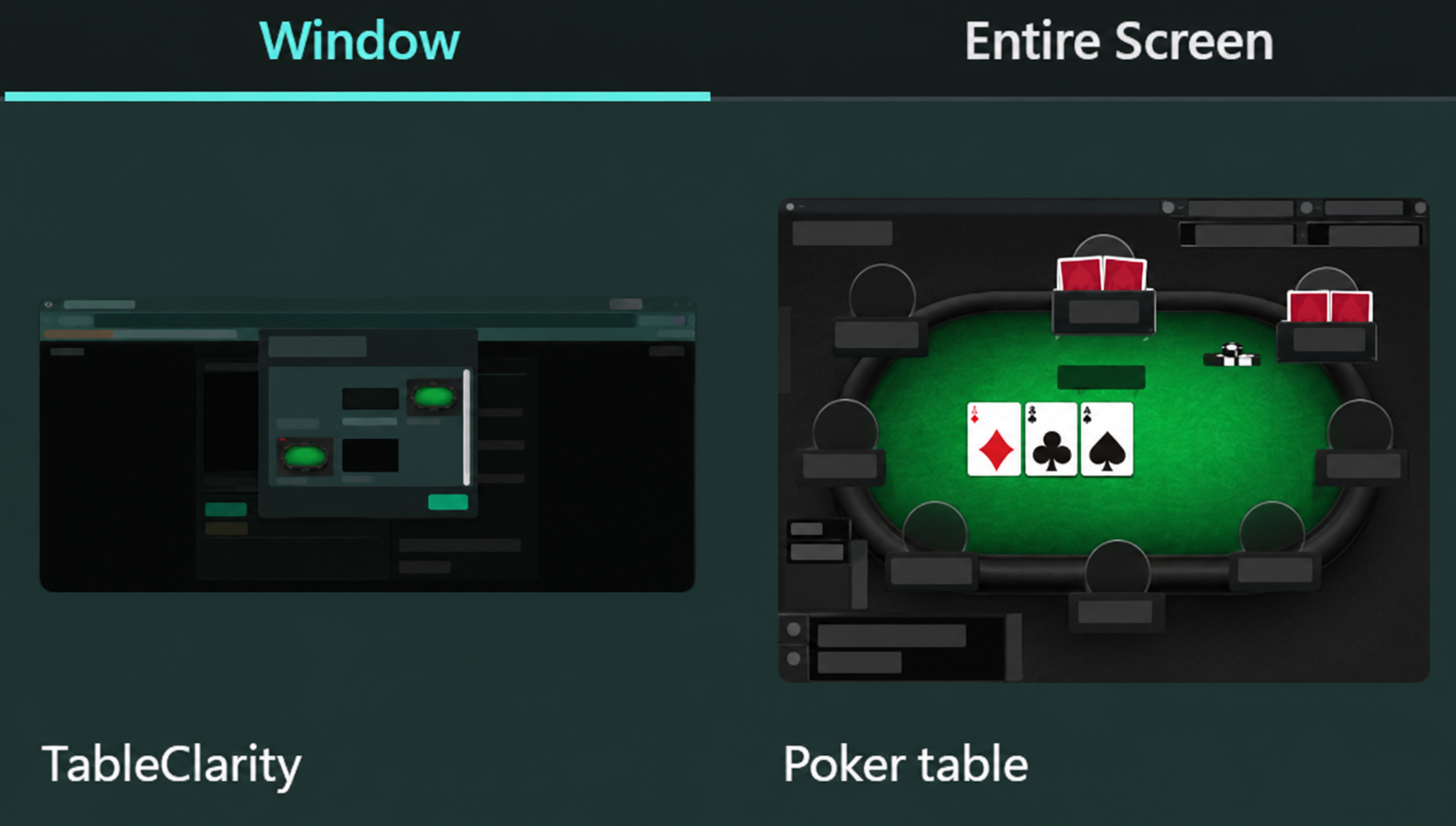
Choose Window, then select the poker-table preview—the right-hand example here. Your window order may differ. Privacy-sanitized illustration based on the window chooser. View larger ↗ Select your table, then click Share
In the chooser, select the window containing your table, then click the browser's Share button to confirm. That button is outside the cropped example above. If your table is in a browser tab, choose the tab option when available. Avoid selecting the TableClarity window itself or your entire screen when a single table window will do.
Allow screen-sharing permission if your browser or device asks. Return to TableClarity and check that the preview shows the intended table, with cards, dealer button, seats, stacks, pot and bets readable. Use a supported desktop browser for sharing; the chooser may look different on your device.
Analyze a spot
Click Analyze this spot to analyze one image of the current live preview. To review the image first, click Capture spot; this freezes a frame, and Analyze uses that exact image. Click Return to live when you're ready to capture another hand. TableClarity analyzes when you click; it doesn't continuously analyze or play for you.
Read the recommendation
Start with the suggested move and sizing, then review the reasoning, visible evidence, assumptions, and next-street plan. The game-type label shows which strategy mode was used. If key details are unreadable, TableClarity may ask for more information; capture a clearer frame before trying again.
Review saved hands
Open History to revisit successfully saved analyses from your account, newest first. Each saved hand includes its screenshot, recommendation, and game type. Use Recommendation to return to the current result. When you're finished, use Stop screen sharing beside the capture controls or your browser's stop-sharing control.
Free use and subscriptions
New verified accounts receive 3 successful welcome analyses, shared across Cash Games and Tournaments. This is a one-time allowance; sign-in, verification and Google linking do not replenish it. Failed analyses use no allowance.
After your third welcome analysis, your next free use is available at the next 00:00 UTC reset. From then on, you get one successful free analysis per UTC day. Daily credits do not accumulate while welcome analyses remain. Existing accounts keep their regular daily allowance.
The $19.99 USD monthly subscription includes 200 successful analyses per billing month across both modes. Unused analyses don't roll over, and failed analyses don't consume credits.
Click Subscribe on the main page. Choose Continue with Google to sign in and continue automatically to secure Stripe checkout. Email and password are also available; confirm your email if prompted. After subscribing, use Manage subscription to update payment details or cancel renewal. Cancellation keeps your paid access until the current billing period ends.
Quick fixes
- I can't share my screen.
- Allow screen sharing in the browser's prompt. If sharing is unavailable, try a supported desktop browser. Your device may also require screen-sharing permission in its system settings.
- The screenshot is blurry or missing the action.
- Make the poker window larger and capture again. Include the information needed for the decision; TableClarity can't reconstruct action that isn't visible.
- I haven't received my confirmation code.
- Check spam or junk, confirm the email address, then use the resend option in the confirmation dialog. If resending is temporarily rate limited, wait before trying again.
- Why can't I analyze another hand?
- Check the allowance shown on your account. New accounts use their welcome allowance first. Once it is exhausted, daily free use resets at 00:00 UTC; monthly subscription credits reset on your billing date. If an analysis is already running, wait for it to finish.
- What happens to my screenshot?
- When you analyze, the captured image is sent for AI analysis. Successfully saved hands, including their screenshots, appear in your account's History. Screen sharing itself gives you a preview; it doesn't start continuous analysis.
Use TableClarity where permitted by your poker room and local rules. TableClarity never clicks, bets, or controls your poker client.
Try TableClarityFor online poker, review room assistance rules first. Do not use AI advice during prohibited active play; PokerStars also restricts advanced tools while its client is open. Use permitted completed-hand material for off-table study.
Explore GTO, cash-game, and tournament study guides
Share multiple poker tables
Below Game type and directly above Share poker screen, choose Number of tables (1–6). One table is the default. Use each panel’s Share control to select its window in a separate browser picker; one picker cannot select several windows. New panels start with Table 1’s game type, and each panel can then use Cash Games or Tournaments independently.
Each table keeps its own live preview, captured frame and recommendation. Analyze the table you want to review; only one analysis can run at a time, and every successful table analysis uses one credit from the same account allowance. History labels the originating table, without carrying previous hands into a new request.
Stop sharing ends only that panel’s stream. Lowering the count stops streams for the removed tables while keeping the others running. Re-added panels retain their captures and results, but need a new Share picker to resume live video. Leaving or reloading the page ends sharing; browser permissions and device resources may limit simultaneous streams.
Fantasy Football and Sports Gambling
Fantasy Football: choose Weekly league or DFS. Upload a roster screenshot, share a screen, or type a player list. Include scoring and roster rules; for DFS add known salaries, cap, contest and slate. A screenshot is optional for typed lineups.
Sports Gambling: upload or capture a proposed or purchased ticket. Include the selected event, line and separately shown price. Tell the tool if the bet is already placed. For exposure or hedge analysis, add a typed list of current positions and optional candidate lines, including known prices and stakes. The set uses one shared analysis. Conditional scenario returns subtract both original and added stakes; they do not establish positive expected value. Florida -14.5 is a point spread, not an American price; missing prices are not assumed.
Both tools use your supplied information, with no live injury, score or odds feed. Verify current facts before acting. History saves each tool’s result and input under your existing account.
All four tools share one allowance: 3 one-time welcome analyses, then 1 per UTC day after the third at the next reset; or 200 successful analyses per billing month for $19.99. Changing tools or input type does not add credits. Failed analyses use none.
Technical Analysis: stock and crypto charts
Open Technical Analysis and choose Stocks or Crypto. Upload a PNG, JPEG or WebP chart under 3 MB, or use Share screen and Capture image in a supported browser. Include readable price axes, timeframe and any indicators you want reviewed. Add optional symbol/pair, chart date/timezone, market or venue and your question.
Review visible trend and structure, approximate support and resistance, readable volume/indicators, and conditional bullish and bearish scenarios with invalidation. A chart image is required; text context alone does not fetch prices. This is educational chart review with no live market, quote or news feed, account connection or trade execution. Charts may be historical or stale and no outcome is guaranteed.
Each successful chart analysis uses one existing shared credit and saves to your account History. Failures use none; the same welcome, daily and monthly allowances apply.